PAY YOUR STORAGE BILL ONLINE
AKB Self Storage • 335 Garfield Street, McMinnville, TN 37110 • (931) 473-3188
AKB SELF STORAGE DOES NOT ACCEPT CREDIT CARD PAYMENTS OVER THE PHONE.
In-person payments (cash, check, cashier's check, money order, or onsite credit card) must be made at 335 Garfield Street, Monday–Friday, 7:00 AM – 4:00 PM. For all other payments, use the online portal — follow the steps below.
NO LATE FEE GUARANTEE
Tenants enrolled in AutoPay never pay a late fee. Sometimes a payment fails through no fault of your own — an expired card, a compromised or replaced card, or a billing address change. If that happens, the system automatically applies a late fee after the 5th of the month. If you had AutoPay set up when the fee was charged, just call the office at (931) 473-3188 and we’ll remove it. Important: you must make your payment the same day the late fee is removed — the system re-applies the fee overnight, and you’d have to call us again. Best practice: call, have the fee removed, then pay online and update your card in Automatic Payment right away.
START HERE:
Go to www.akbselfstorage.com and click Pay Online in the top menu. Works on any phone, tablet, or computer.
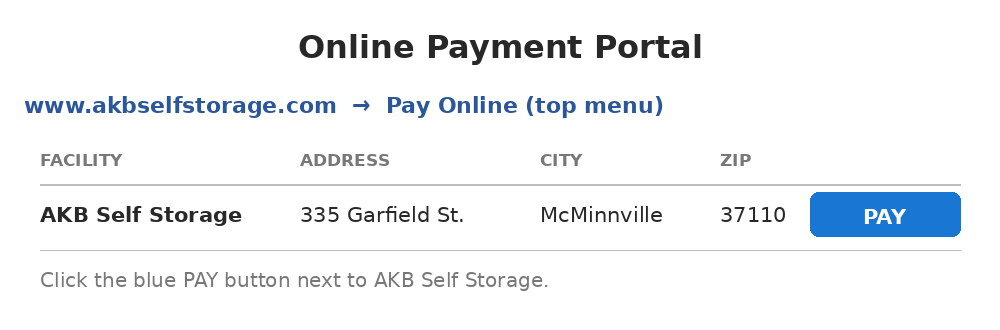
Step 1 — Open the Payment Portal and Click PAY
On the Online Payment Portal page, find the AKB Self Storage row (335 Garfield St., McMinnville) and click the blue PAY button. The Tenant Account Manager opens.
Step 2 — Create Your Account
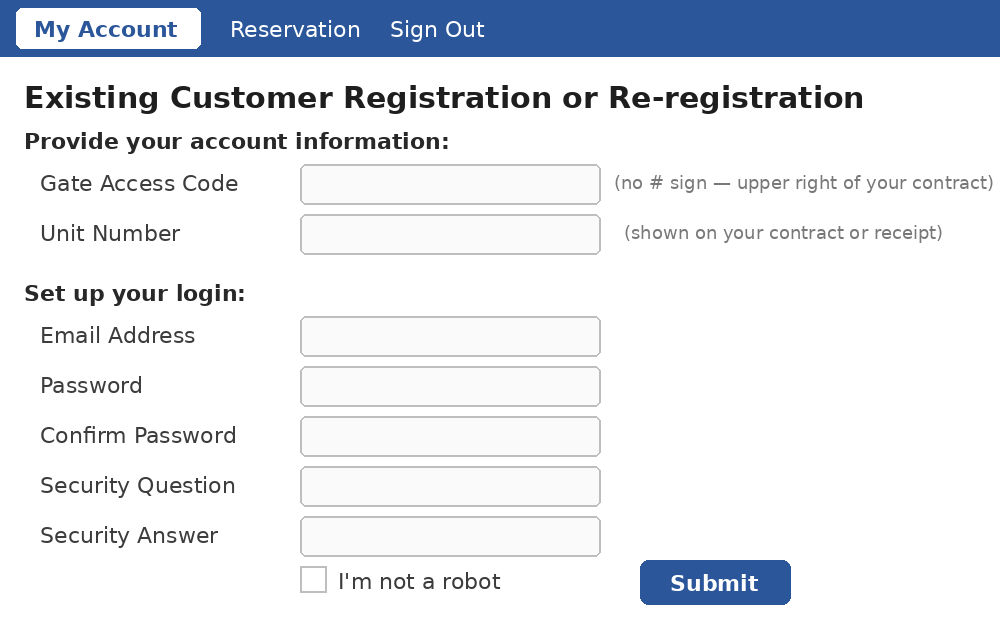
Most customers only do this once — but if you ever forget your password or login, simply create a new account the same way. The portal is designed for this.
- On the Tenant Account Manager screen, click Create account under the login boxes.
- Enter your Gate Access Code without the # sign (upper right corner of your contract).
- Enter your Unit Number (on your contract or any receipt).
- Enter your email address, choose a password, and pick a security question and answer.
- Check I'm not a robot and click Submit.
Step 3 — Make a Payment
- Log in with your email and password on the Tenant Account Manager screen.
- On Select A Ledger, click your unit number (shown in blue).
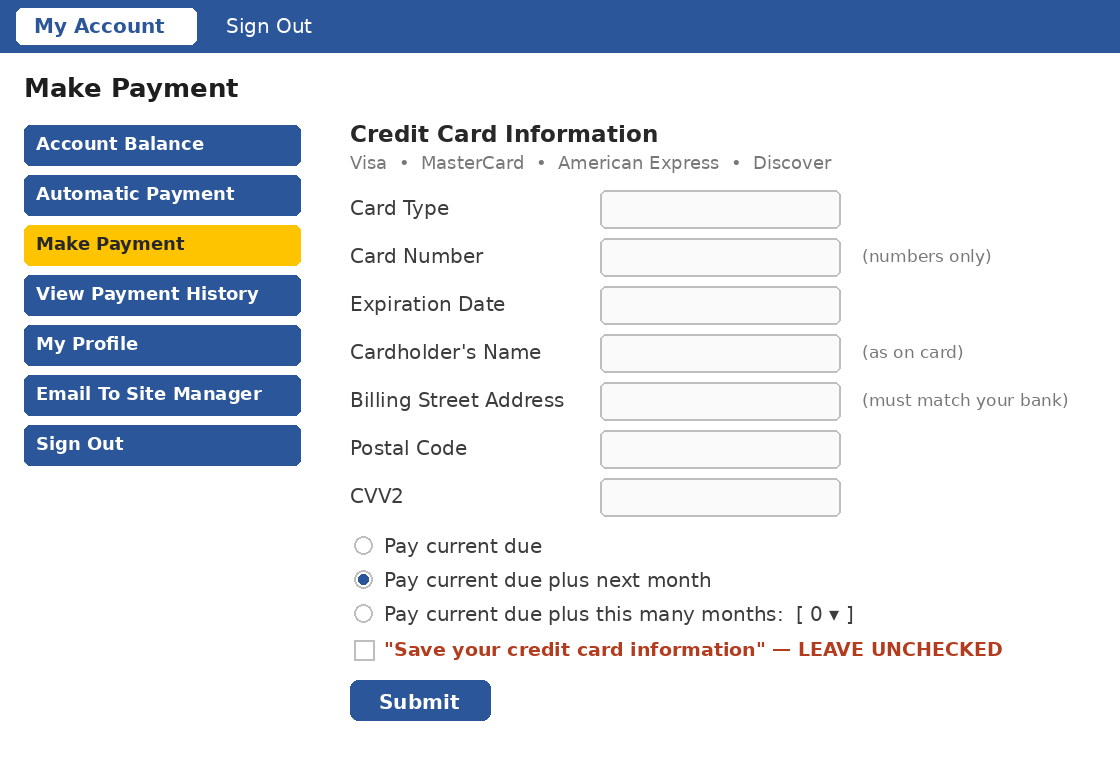
- Click Make Payment in the left-hand menu.
- Enter your card information (Visa, MasterCard, American Express, or Discover). The billing address must match what your bank has on file.
- Choose Pay current due, Pay current due plus next month, or Pay current due plus this many months (pick the number in the dropdown), then click Submit.
- Leave the “save your credit card information” box UNCHECKED — AutoPay is set up on the Automatic Payment screen (Step 4), not here.
- Sign out when finished — especially on a shared or public computer.
Step 4 — Set It and Forget It with AutoPay (recommended)
All AutoPay is set up by you, the customer, through the online portal — office staff cannot enroll you by phone or in person.
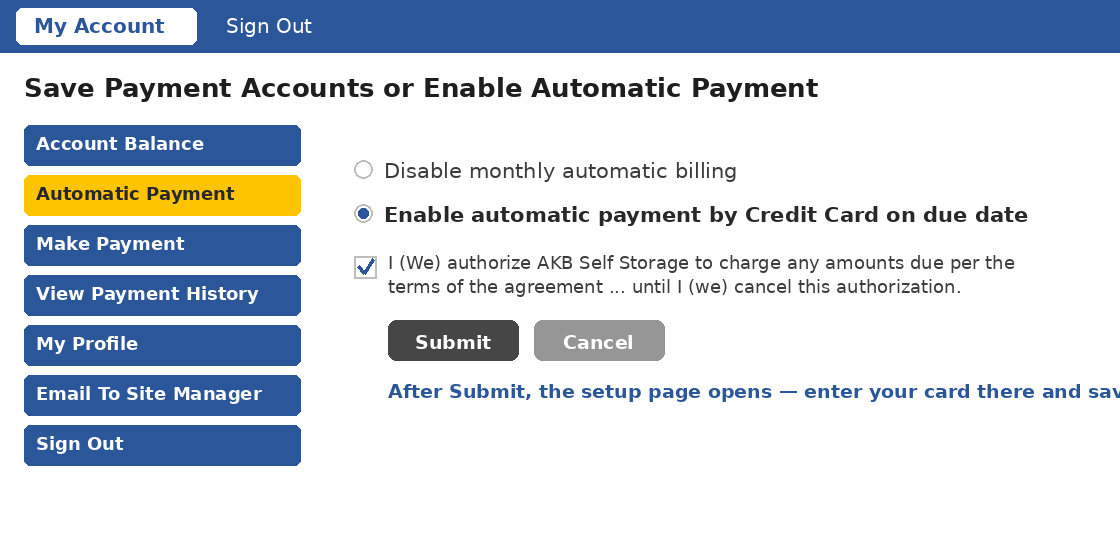
- After logging in, click Automatic Payment in the left-hand menu (screen title: “Save Payment Accounts or Enable Automatic Payment”).
- Select Enable automatic payment by Credit Card on due date.
- Check the authorization box (“I (We) authorize AKB Self Storage to charge any amounts due…”) and click Submit.
Step 5 — Save Your Card on the AutoPay Setup Page
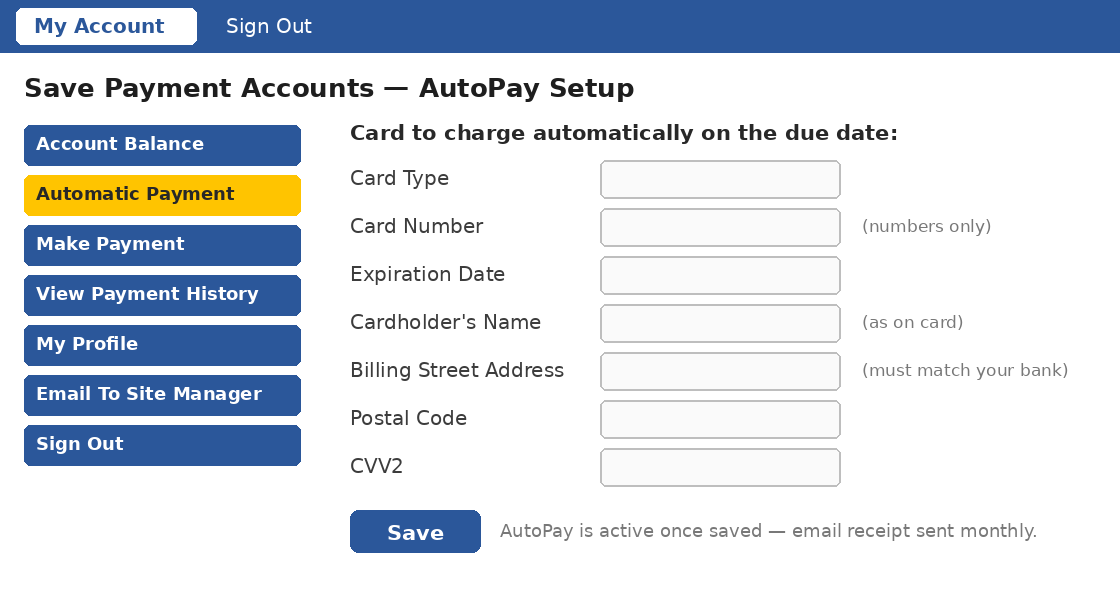
- After Submit, the AutoPay setup page opens. Enter your card information (billing address must match your bank).
- Click Save. AutoPay is now active — rent is charged automatically on the due date, and you still receive an email receipt every month.
- Got a new or replacement card later? Return to Automatic Payment and update it right away — that keeps your No Late Fee Guarantee active.
NEED HELP?
Call (931) 473-3188 or stop by 335 Garfield Street (Mon–Fri, 7–4). Forgot your login? Just create a new account — see Step 2.
Screens shown are illustrations — the live portal may differ slightly in appearance.